
Paper jams almost always come from one of three places: worn pickup rollers, overfilled or damp paper, or a small torn piece still stuck inside the path. The fastest fix is to pull the tray out, remove the crumpled sheet slowly with both hands, and check the paper stack isn’t above the tray’s max line. Here are 3 ways how to fix printer paper jam, ranked by how likely they’re to be your actual problem. Start with the tray and rollers, since that’s where most home printers fail.
Why your printer keeps getting paper jams
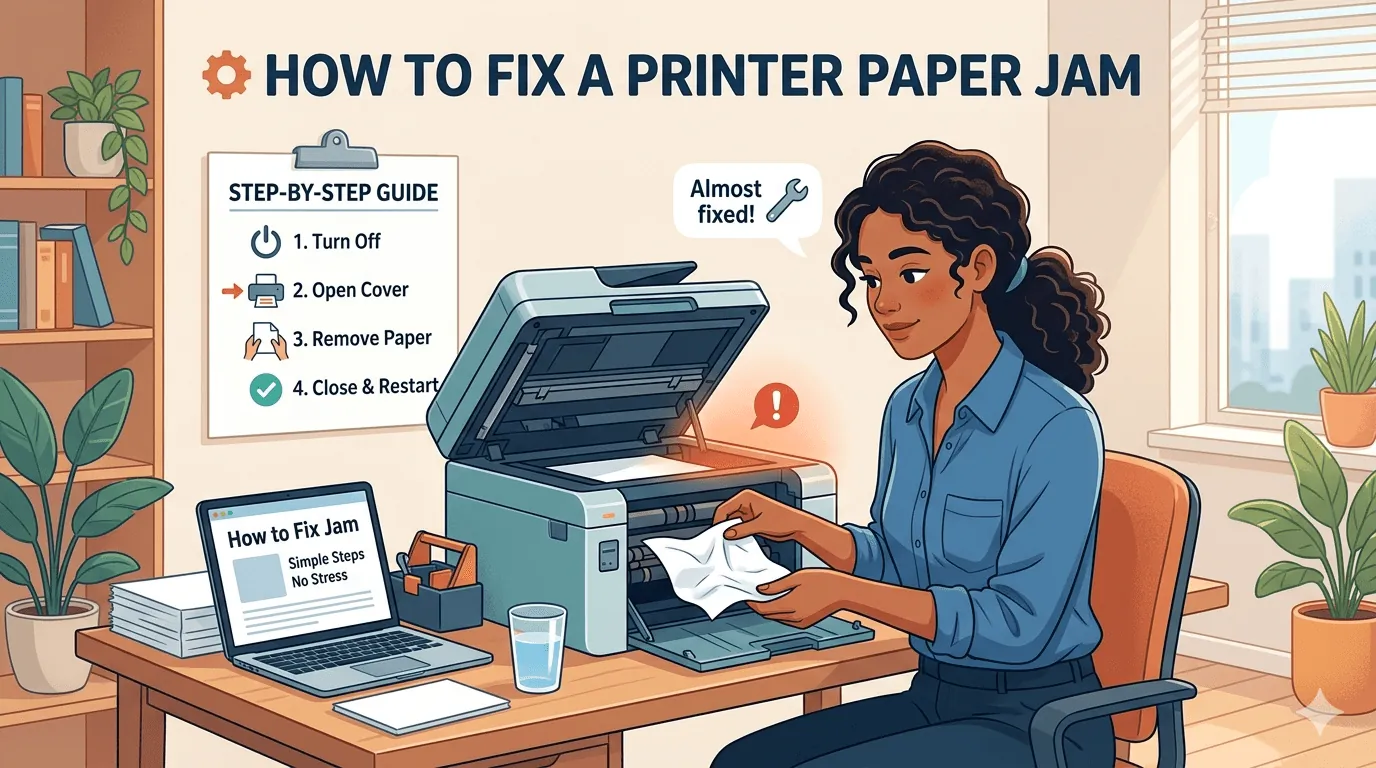
Most jams trace back to the paper feed, not the printer’s brain. The pickup roller is a rubber wheel that grabs the top sheet and pushes it in. After months of use, that rubber gets shiny and slick from paper dust. It can’t grip anymore, so it grabs two sheets at once or lets the sheet slip sideways and crumple.
Paper condition is the second big cause. Sheets that sat in a humid room absorb moisture and go soft. Soft paper buckles instead of feeding straight. The same happens when you load a stack above the tray’s fill mark, because the roller has to push down harder and drags extra sheets with it.
The third cause is debris you can’t see. A tiny torn corner from an old jam stays in the path. Every new sheet hits it and folds. This one is sneaky because the printer looks clean from the outside.
If none of these match, the issue may be a sensor or a worn feed assembly. That’s a repair job, and we’ll cover when to stop trying yourself.
Check the tray and rollers first
This fix is for anyone whose printer jams on the first sheet, or grabs two or three sheets at once. Open the tray and lift the paper out. Look at the stack: if it’s above the max fill line printed on the tray’s side, remove sheets until it sits below that line. Fan the stack, then square it on a flat surface so all edges line up.
Now look at the gray or black rubber roller above the tray. If it looks shiny, or you can see a smooth band where paper runs, it’s worn. Wipe it with a lint-free cloth dampened with isopropyl alcohol, and let it dry for a minute. A wet roller will slip more, not less.
Reload 20 to 30 sheets, not a full ream. Set the paper guides so they touch the stack with no gap, but don’t bend it. Print one test page. If it feeds clean, the fix worked.
Rollers are a wear part. Most makers sell a replacement kit for common models, and the printer’s own manual lists the part number. Check your model’s support page for the exact kit and its price, since it varies by printer. If the roller is cracked or flat-spotted, cleaning won’t help and you’ll need the kit.
Dry and store your paper properly
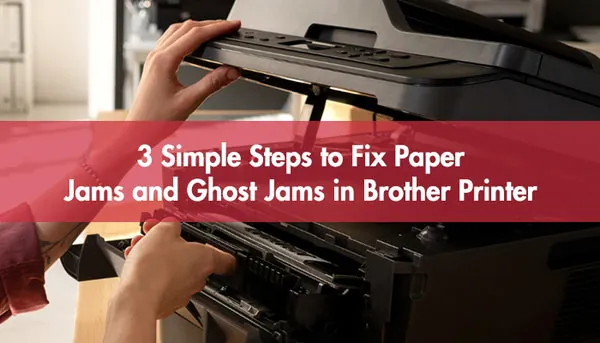
This fix is for jams that show up in humid weather, or when the paper feels soft and curls at the corners. Moisture is the enemy here. Paper that’s taken on water from the air swells slightly and loses stiffness, so it buckles in the feed path instead of sliding through.
Take the stack out and check it. If sheets feel limp or cool to the touch, they’ve absorbed moisture. Spread them in a single layer in a dry room for a few hours, or put the stack in a sealed plastic bag with a silica gel packet overnight. Don’t microwave paper and don’t iron it — both are fire risks and warp the sheets.
Store unopened reams flat, off a concrete floor, in a closed cabinet. A concrete floor wicks moisture straight into the wrapper. Once a ream is open, keep it in the tray or a sealed bag, not loose on a shelf.
Reload only what you’ll print in a week or two. A 500-sheet stack sitting in a damp room for a month will jam again. Print a test page after drying. If it feeds straight and the corners stay flat, you’ve fixed it.
When to call a repair tech instead
This is the one for jams that survive new paper and a clean roller. If you’ve done both fixes and the printer still stops, or you hear grinding, the problem is inside the machine — a worn feed assembly, a broken sensor flag, or a gear that’s stripped. That’s past what a home user should touch.
Don’t open the housing to chase it. Laser printers hold a high-voltage power supply and a fuser that stays hot enough to burn skin long after printing stops. The fuser and power board can hold a dangerous charge even when the printer is unplugged. This is a real injury risk, not a warning label.
Call the maker’s support line or a local repair shop and describe the sound and where the sheet stops. Ask for a quote before they collect the printer. If the quote is close to the price of a new printer, replace it — most home printers aren’t built for cheap repairs.
A new printer is the better call when the machine is more than a few years old, jams daily, and the repair quote is high. A repair is worth it when the printer is under warranty, since the maker covers it, or when it’s a business model with costly parts. Check your warranty terms first.
Popular paper jam advice that backfires
-
Pull the sheet out fast and hard. Ripping it leaves a torn corner inside, and that scrap causes the next jam. Pull slowly in the direction the paper feeds. If the sheet won’t move, stop and open the rear door instead of forcing it.
-
Print on thicker paper to stop jams. Heavier stock often needs a different feed path or a rear slot. In the normal tray it can jam more, not less. Check the tray guide for a weight range before you buy a ream.
-
Hit print again right after a jam. The printer may still hold a half-fed sheet. Clear the path first, or you’ll stack two jams. Wait for the ready light to stop blinking before you resend the job.
-
Blow into the printer to clear dust. Your breath adds moisture to the rollers and the dust just moves deeper. Wipe with a dry cloth instead. A can of air held at an angle can spit liquid propellant onto the rollers, so keep it short and level.
-
Use the special “jam-free” paper claim. No paper brand prevents jams. Roller wear and moisture decide it, and a clean roller on plain paper beats any label. If jams cluster in humid weather, store paper sealed and it will feed better than any premium box.
Stop jams coming back

Small habits keep the feed path healthy. The table below pairs what people often do with a better move, and why it matters.
| If you’re doing this | Do this instead | Why |
|---|---|---|
| Loading a full ream into the tray | Load 20-30 sheets at a time | Keeps the stack under the fill line so the roller grips one sheet |
| Leaving paper in a damp room | Store reams flat in a sealed cabinet | Dry paper stays stiff and feeds straight instead of buckling |
| Ignoring a shiny roller | Wipe it monthly with a damp cloth | A clean roller grips; a glazed one slips and doubles sheets |
| Reusing crumpled or folded sheets | Use flat, undamaged paper only | Creases catch in the path and fold into a jam |
| Printing after a partial jam without checking | Open the tray and look for scraps | A torn corner left inside causes the next jam |
Run a test page after each change so you know which one helped. If jams drop to rare, you’ve found your cause. If they don’t, it’s a machine fault, and the repair-or-replace call above is your next step.
Related guides
Frequently asked questions
Can a paper jam damage my printer?
Rarely, if you clear it gently. Damage happens when a sheet is torn and the scrap stays inside, or when someone forces the tray or pulls hard enough to bend a guide. Slow, two-handed removal protects the rollers and the feed path. If you hear grinding after clearing a jam, stop printing and get the machine checked, since a stripped gear gets worse with use.
Why does my printer keep jamming on the same sheet?
The sheet is likely damp, creased, or slightly the wrong size for the tray setting. Try a fresh sheet from a sealed ream and check the paper size setting matches what’s loaded. If the same spot jams every time, a small torn piece from an earlier jam is probably stuck there. Open the tray and the rear access door and look for it.
How long should a printer’s rollers last?
It depends on how much you print and the paper you use, so there’s no single number. Roughly, a home printer used a few times a week can go a year or more before rollers glaze, while a busy office printer wears them faster. Your model’s manual lists a duty cycle, and the maker’s support page gives the replacement roller kit for your printer.
Is it safe to open the printer to remove a jam?
Only the doors and trays the manual tells you to open. Those are safe. Never remove the outer housing or reach past the fuser area, because laser printers hold a hot fuser and a power supply that can shock you even when unplugged. If the jam is behind a panel the manual doesn’t mention, that’s a repair tech’s job, not yours.
What happens if I leave a torn piece of paper inside?
It keeps causing jams. Each new sheet hits the scrap and folds, and over time the paper can pack tighter around the rollers. Clear every visible piece before printing again, and use a flashlight to check the path behind the tray and the rear door.
Why does my printer jam only with new paper?
New paper straight from a cold or damp delivery can carry extra moisture, and it may also be a different weight or finish than your last ream. Let a new ream sit in the room for a day before use, and check the label matches the weight your printer’s manual lists for the tray. Heavier stock often needs the rear feed slot instead.
How often should I clean the printer rollers?
Wipe the pickup roller about once a month if you print regularly, or whenever you notice double-feeds. Use a lint-free cloth dampened with water and let it dry fully before reloading. Skip harsh solvents, since they can degrade the rubber and make it slip sooner. A worn or cracked roller needs replacing, not more cleaning.
Conclusion
If the tray and roller fixes clear the jam, keep the paper dry and the stack light, and you’ll rarely see one again. When the same spot jams after both, stop forcing it and get a quote before you spend more time on a machine that’s telling you it’s worn out.