
A USB cable that’s loose, or a printer that’s on a different Wi-Fi network than your computer, causes most HP printer communication failures. Check the cable first if you use one. If you’re on Wi-Fi, make sure both devices sit on the same network name — not a guest network, and not a band your printer doesn’t support. That single fix solves most cases.
Why your HP printer stops talking to your computer
Printers and computers lose contact for a few real reasons, and they’re not mysterious. The connection between them breaks, or one side stops recognizing the other. Fixing it means finding which of those two things happened.
The most common cause is a network mismatch. Your computer joins one Wi-Fi network and the printer joins another — often a guest network, or a different network name entirely. HP’s own setup guidance explains that both devices must be on the same network for wireless printing to work.
A second cause is a stale IP address. Your router hands out addresses that can change after a restart or a power outage. The computer keeps looking for the printer at its old address, finds nothing, and reports it as offline. This is common on home routers that don’t reserve addresses.
A third cause is a driver or software problem. Windows or macOS updates can leave an old HP driver unable to talk to the printer. The printer works fine on its own panel — it just can’t be reached from the computer.
Less often, the printer’s wireless radio has dropped off the network entirely. The printer looks on, but it isn’t connected to anything. You can confirm this on the printer’s own control panel or by printing a network configuration page, which shows the network name and IP address.
Check the connection type first
Start by confirming how your printer actually connects, because the fix depends on it. A USB printer and a Wi-Fi printer fail for different reasons, and treating one like the other wastes time.
If you use a USB cable, unplug it from both ends and plug it back in firmly. Try a different USB port on the computer — the ones on the back of a desktop usually work better than a hub. If the cable is old or bent, swap it for a known-good one. A damaged cable is a real cause and a cheap thing to rule out.
If you use Wi-Fi, open your computer’s network settings and note the exact network name. Then check the printer’s panel or its network configuration page and compare. They must match exactly, including upper and lower case.
If they don’t match, reconnect the printer to the correct network using the HP Smart app or the printer’s wireless setup wizard. You’ll need the Wi-Fi password. Once both devices show the same network name, try printing again.
This fix is for anyone whose printer and computer are simply on different networks. It won’t help if the printer can’t reach the router at all — in that case, move on to the next check.
Give the printer a fixed address
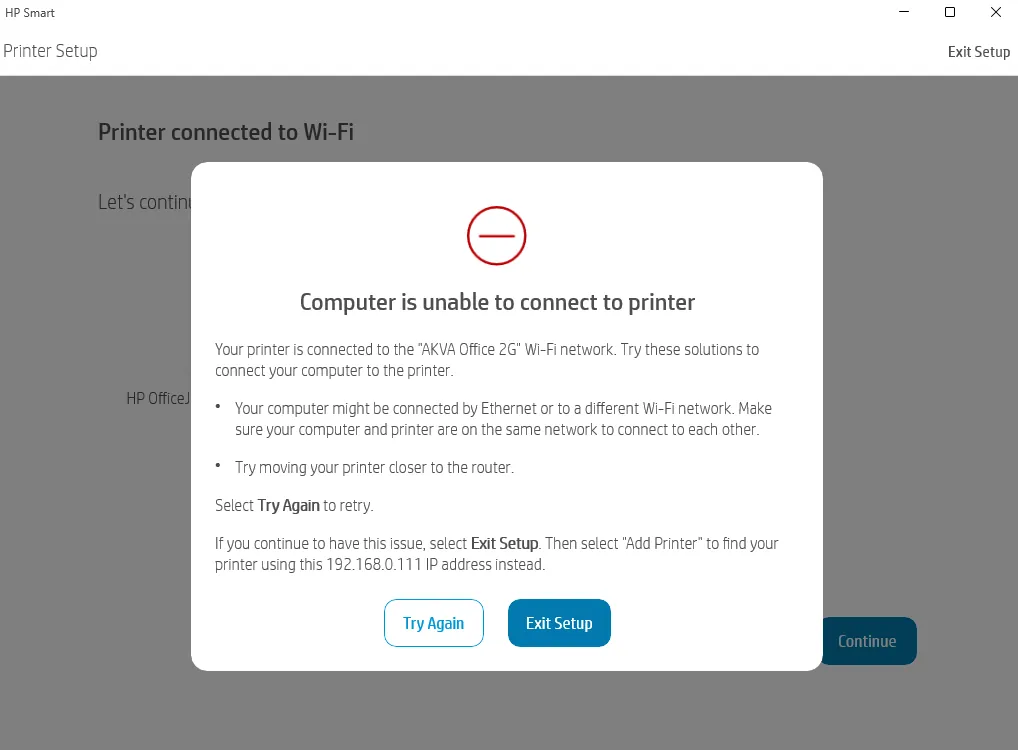
If the network names match but the printer still drops out, the problem is often a changing IP address. Your router reassigns addresses over time, and the computer loses track of where the printer went.
The fix is to reserve an address for the printer in your router’s settings. Log into your router’s admin page — the address and login are usually printed on a sticker on the router itself. Find the DHCP reservation or “static lease” section, and assign your printer a fixed address.
You’ll need the printer’s MAC address, which appears on its network configuration page. Enter that address and pick an IP number outside the range your router hands out automatically. Save the setting and restart both the router and the printer.
After that, remove the old printer entry from your computer and add it again using the new fixed address. On Windows, go to Settings, then Printers and scanners, remove the device, and add it back. On a Mac, use System Settings and Printers & Scanners.
You’ll know it worked when the printer stays online after a router restart. If it still vanishes, the issue is likely the driver, not the address.
Reinstall the driver and HP software
When the connection is solid but the computer still can’t reach the printer, the driver is the next suspect. Operating system updates can leave an old driver unable to communicate, even though nothing else changed.
Remove the printer completely first. On Windows, open Settings, go to Printers and scanners, select your HP printer, and choose Remove. On a Mac, open System Settings, go to Printers & Scanners, select the printer, and click the minus button. Then restart the computer.
Download the latest driver and the HP Smart app from HP’s official support site. Use the model number printed on the front or back of your printer to find the right one — drivers aren’t interchangeable between models. Install it and add the printer again when prompted.
This is worth the extra time when the printer is otherwise healthy and you’ve already ruled out the network. It isn’t worth it if the printer won’t power on properly or shows a hardware error — that’s a repair question, not a software one. If the printer is under warranty, contact HP support before opening or moving anything.
Popular fixes that don’t help
Some advice circulates widely and makes things worse. Here’s what to skip.
- Deleting and re-adding the printer over and over. If the network or driver is the real problem, re-adding changes nothing and just burns time. Fix the cause first.
- Turning off your firewall completely. This exposes your whole computer to your network to solve a printing problem. Allow the printer through the firewall instead.
- Resetting the printer to factory settings as a first step. You lose the network setup and have to redo it, and it rarely fixes a communication fault that a simple network check would catch.
- Using a VPN while printing. A VPN can route your traffic away from your local network, so the computer can’t see the printer at all. Turn it off and try again.
- Blaming the printer when the router is the problem. A router that drops devices or runs old firmware causes this often. Check for a firmware update before you replace anything.
Two of these deserve a closer look, because the usual advice is half right.
Re-adding the printer is worth doing once, after you have confirmed the network is fine. If a second re-add fails the same way, stop. The fault is upstream, and a third attempt will fail too.
A VPN is only a problem when it routes all traffic. Many let you exclude local addresses, so the printer stays visible while the VPN runs. If yours has that setting, use it instead of switching the VPN off every time you print.
Factory resets have one real use: a printer you’re giving away or moving to a new network. For a printer that simply stopped responding, it costs you the setup and usually changes nothing.
Stopping it from happening again

A few habits keep the connection stable. Set them up once and the problem mostly stays away.
| If you’re doing this | Do this instead | Why |
|---|---|---|
| Letting the router assign a new address each time | Reserve a fixed IP for the printer | The computer always knows where to find it |
| Leaving the printer on a guest network | Move it to your main network | Guest networks often block device-to-device traffic |
| Ignoring router firmware | Update it when the maker releases a version | Older firmware can drop connected devices |
| Installing any driver you find | Use the one for your exact model from HP | Wrong drivers can’t talk to the printer |
| Keeping the printer far from the router | Move it closer, or use a Wi-Fi extender | A weak signal causes drops and timeouts |
The fixed address is the one that pays off most, because it survives every reboot of the printer and the router. Pick an address outside the range your router hands out automatically, so nothing else can be given the same one. If you don’t know that range, look at the router’s settings page under LAN or DHCP.
Two things are worth checking before you blame the printer. If other devices on the same network also drop, the router is the problem, not the printer. If only the printer drops, and only when the microwave or a cordless phone is running, move the printer farther from those devices or connect it to a less crowded band.
Write the reserved address on a sticky note and put it on the printer. When the connection fails in a year, you won’t have to work it out again.
Frequently asked questions
Why does my HP printer show offline when it’s turned on?
The printer is on, but your computer can’t reach it. That usually means the two are on different networks, or the printer’s IP address changed. Check that both devices use the same network name, then reserve a fixed address for the printer in your router settings. Restart both and try again.
Can a VPN stop my HP printer from connecting?
Yes. A VPN can send your computer’s traffic through a remote server, so it can’t see devices on your own network. Turn the VPN off, then try printing. If it works, you’ve found the cause. Some VPN apps let you allow local network access — check the app’s settings.
How long does it take to fix a printer connection problem?
Most cases take 10 to 20 minutes if it’s a network mismatch or a stale address. A full driver reinstall can take 30 minutes or more, depending on your internet speed. If the printer shows a hardware error, the timeline depends on HP support, not on anything you can do at home.
Is it safe to turn off my firewall to fix printing?
No. Turning off your firewall exposes your computer to everything on the network. Instead, allow the printer through the firewall. On Windows, go to Windows Security, then Firewall and network protection, and allow the app. This keeps your protection while letting the printer connect.
What happens if I reset my printer to factory settings?
You’ll lose the network name, password, and any saved settings. You’ll need to reconnect the printer to Wi-Fi from scratch using the HP Smart app or the setup wizard. Do this only after simpler checks fail, since it rarely fixes a communication fault on its own.
Do I need to call a technician for this?
Usually no. Network, address, and driver problems are all fixable at home. Call HP support if the printer shows a hardware error, won’t power on, or is still under warranty. Don’t open the printer yourself — that can void your warranty and isn’t a home repair job.
How do I know if the problem is the printer or the computer?
Try printing from another device, like a phone. If that works, the printer is fine and the problem is on your computer — likely the driver. If nothing can reach the printer, the issue is the printer’s network connection. That one test tells you which side to fix.
Conclusion
If none of that gets things talking, run HP’s Print and Scan Doctor — it’s free and walks you through the fix on its own. Still stuck? Reach out to HP support with your model number handy. You’ll get it sorted, and you won’t have to think about it again.