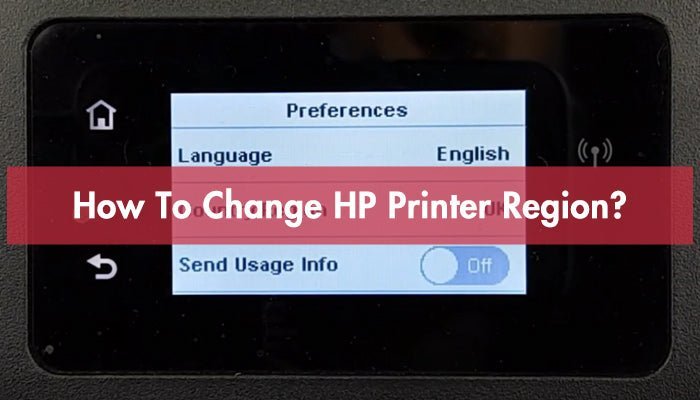
To change the printer language to English, open the printer’s menu on its screen and look for a setting called Language, Display Language, or Panel Language. On most Canon, HP, and Brother models you’ll find it in Settings or Setup. The change takes about 1 minute, costs nothing, and needs no tools, no software, and no internet connection. It suits anyone with a working control panel and a few spare minutes.
Before you change your printer language
Gather these before you touch any button. Most of them you already have.
- The printer itself, powered on and sitting at the Ready or Idle state — not asleep, not mid-print.
- A clear view of the control panel. On small models it’s a 2-line LCD; on bigger ones it’s a touchscreen. Both work.
- The exact model number. It’s on a sticker at the back or under the front cover. You’ll need it if you have to look up the menu path.
- The printer’s user guide, either the paper copy in the box or the PDF on the maker’s support site. Search your model number plus “user guide.”
- Your Wi-Fi network name and password — only if you plan to change the language from a web browser instead of the panel.
- A paper and pen, so you can write down the menu path once you find it. You’ll want it again.
- The admin password, if your workplace locked the settings menu. Without it, the language option stays greyed out.
A phone with the maker’s app can work on some newer models, but it won’t work on older ones. The control panel always works.
Step-by-step: changing the printer language to English
- Press the Menu or Settings button on the control panel. On HP models it’s often a wrench icon. On Brother it’s usually labeled Menu. On Canon it may say Settings or have a gear icon. If the screen shows a foreign language, look for the same position — the button layout doesn’t change.
- Scroll to the setup section. Use the arrow keys or swipe the touchscreen. Look for a heading like Setup, Device Settings, or Preferences. On Brother models, press the number key shown next to the menu item if your model uses numbered menus.
- Open the Language option. It’s usually called Language, Display Language, Panel Language, or LCD Language. On some Canon models it sits under Device Settings, not under Setup.
- Pick English from the list. Scroll until you see English, then press OK or Select. Some models show “English” as ENG. If your model asks for a region, choose the one for your country — US English and UK English differ in spelling only.
- Confirm and save. Press OK, Yes, or Apply. The screen should switch to English right away. If nothing changes, press the Home button once and check again.
Tip: If the menu is in a language you can’t read, take a photo of the screen with your phone and use a translation app. You only need to find the Language row once.
- Restart the printer if the change doesn’t stick. Turn it off with the power button, wait 10 seconds, then turn it on. The setting is saved in memory, so it survives the restart.
- Check the driver language on your computer. The panel language and the print driver language are separate. On Windows, open Settings > Bluetooth & devices > Printers & scanners, select your printer, and check its preferences. On Mac, open System Settings > Printers & Scanners.
- Print a test page to confirm everything reads in English. If the test page still shows another language, the driver is the problem, not the printer.
Careful: On office printers managed by an IT department, the language setting may be locked by policy. Changing it yourself can be blocked, or it can reset at the next update. Ask your IT contact instead.
Careful: Don’t factory reset the printer just to change the language. A reset wipes your Wi-Fi settings, your saved fax numbers, and any stored addresses. You’ll have to set all of that up again.
How the job changes by model and setup
The steps stay the same, but the time and the menu path shift with the printer you own. Here’s what to expect.
| Your situation | Time it takes | What’s different | What to watch |
|---|---|---|---|
| Home inkjet with a 2-line LCD | 1–2 minutes | Menu is short, few sub-menus | Arrow keys only, no touch |
| Home inkjet with a touchscreen | Under 1 minute | Language sits in the main Settings list | Swipe, don’t tap too fast |
| Office laser with admin lock | 5 minutes or blocked | Needs an admin password | Setting may reset after updates |
| Printer shared on a network | 2–3 minutes | Panel and driver are separate | Change both, or the PC stays foreign |
| Older model, no screen at all | 10–15 minutes | You change it from the PC driver only | Check the maker’s support page for your model |
Start with one change and check the screen before you go further. Adding a second change on top of a failed first one makes it hard to know which step went wrong.
How to tell it worked
A good result is simple: every word on the control panel reads in English, and the menu labels match the ones in your user guide. Press two or three buttons and confirm each screen is in English. Then print a test page — the printer’s own status report, not a document — and check that the header text is English too.
A poor result looks different. The panel is English but the test page still prints foreign text. That’s the driver, not the printer, and it’s the most common mix-up here. The two settings live in different places and don’t sync.
The other common problem is a half-translated screen. Some models keep a few factory labels in the original language. That’s normal on older firmware and not a fault. If you want it fixed, check the maker’s support site for a firmware update for your model.
Three things prevent both problems: change the panel first, change the driver second, and print a test page after each one so you always know which change caused what.
Rules, cleanup, and how long it lasts
There’s no law or safety standard that governs printer menu language — it’s a manufacturer setting, not a regulated one. What applies instead is your printer’s own firmware and, in a workplace, your IT department’s device policy. If the printer belongs to your employer, that policy outranks anything you read here.
After the change, clear away the notes you made and put the user guide back where you keep it. If you changed the driver too, close and reopen any open print windows so the new language loads. Record the menu path in your phone notes — you’ll want it if the printer ever resets.
The setting lasts until a firmware update or a factory reset. Firmware updates usually keep your language choice, but a reset returns it to the factory default. If that happens, repeat the same steps.
Other ways to get the same result
Change it from the web interface
Most network printers have a built-in web page. Type the printer’s IP address into a browser on the same network, log in, and look for a Language or Preferences menu. This is faster than the panel on office models, and it’s the only route on printers with no screen. You’ll need the admin password.
Change it from the computer driver
Open your printer’s preferences on Windows or Mac and look for a Language or Localization tab. This changes what your computer sends, not what the panel shows. It’s the right fix when the panel is already English but your printouts aren’t. On some models the option doesn’t exist at all.
Ask the maker’s support
If the menu is locked, the screen is broken, or you can’t find the option, contact Canon, HP, or Brother support with your model number. They can give you the exact path for your firmware version. For a work printer, your IT helpdesk is faster and won’t void any service agreement.
Frequently asked questions
Can I change the printer language without the menu button?
Yes, on most network printers. Open a browser, type the printer’s IP address, and log into the built-in web page. The language setting is usually under Settings or Preferences. On printers with no screen and no network port, you can only change the driver language on your computer, not the printer itself.
Why did my printer language change back after a restart?
A firmware update or a factory reset returns the setting to its default. Some office printers also pull their settings from a server each time they connect, which overwrites your change. If it keeps reverting, the printer is managed by your IT department — ask them to set it at the server level.
How long does it take to change the language on a Canon, HP, or Brother printer?
About 1 to 2 minutes on a home printer with a screen, and under 1 minute on a touchscreen model. Add 2 to 3 minutes if you also change the driver on your computer. Office printers with an admin lock can take longer, or stay blocked until IT unlocks the menu.
Is it safe to change the printer language myself?
Yes, it’s safe. It’s a display setting and it doesn’t touch your print quality, your network, or your saved files. The one risk is a factory reset — that erases your Wi-Fi password and stored fax numbers. Skip the reset and change only the language option.
What happens if I pick the wrong English?
Nothing breaks. US English and UK English differ in spelling and date format only, so your prints still come out correct. If the date format looks wrong, go back into the same menu and pick the other English option. You can switch back at any time.
Why is my printout still in another language after I changed the panel?
The panel and the driver are two separate settings. Changing the panel doesn’t change what your computer sends. Open your printer preferences on Windows or Mac, find the Language or Localization tab, and set it there too. Then print a fresh test page.
Can I change it if the menu is in a language I can’t read?
Yes. Take a photo of the screen and run it through a translation app to find the Language row. Button positions are identical on every unit of the same model, so a working printer or user guide diagram shows you exactly where to press.