
To set the clock on a Samsung microwave, press Clock, type the time with the number pad, then press Clock again to save it. On most models you’ll see 12H or 24H first — pick one with the number pad or Clock, then enter the time. The whole thing takes about 20 seconds. It suits anyone with a standard Samsung countertop or over-the-range model and a working display.
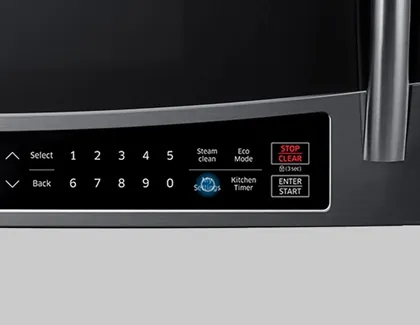
If your model lacks a dedicated Clock button, check your model’s manual for the button or menu your panel uses to reach the clock setting.
People often punch in four digits without noticing the AM/PM indicator on the screen. A microwave set twelve hours off will run delayed-start cooking cycles overnight.
What you’ll need before you start

Grab the model number first. It’s on a sticker on the back or the left side of the body, and it decides which button sequence works. Samsung has used several control layouts over the years, so the same brand name doesn’t mean the same steps.
- Your exact model number — printed on the rating label, or inside the door frame on over-the-range units.
- The owner’s manual — Samsung publishes a free PDF for every model on its support site. Search your model number there.
- A working power supply — the microwave plugged into its own outlet, not a shared extension lead.
- The correct time — including whether you want 12-hour or 24-hour format.
- Good light and a clear view of the panel — some buttons are printed in grey on grey.
- A phone camera — photograph the panel before you start, so you can see which buttons you actually have.
- A pen — to write the sequence on the inside of a cupboard door.
The one substitution that works: your phone’s clock app instead of a wall clock. The one that doesn’t: guessing the sequence from a YouTube video of a different model — the panel looks the same but the firmware often isn’t.
Setting the clock, step by step
-
Plug the microwave in and let the display settle. It’ll show either a flashing time,
12:00, or0:00. Wait a few seconds for the display to settle before touching anything. -
Press Clock once. On most Samsung models this is labelled Clock or shows a small clock icon. On some, you’ll need to hold it for 3 seconds. If nothing happens, press Stop/Clear once and try again.
-
Choose 12H or 24H. The display shows one of them. Use the number pad or press Clock again to toggle between 12H and 24H, following the prompt on your display. If your model skips this step, it’s already set to 12-hour.
-
Enter the time with the number pad. For 9:05, type
0905. For 2:30, type0230. Always four digits, even when the hour is a single number. Tip: if the display jumps to the next digit before you finish, start again from step 2. -
Press Clock again to lock it in. The colon stops flashing and the time holds steady. On a few models you press Start instead. Careful: if you press Start on a model that wants Clock, you’ll start the microwave instead of saving the time.
-
Check it against your phone. Give it 60 seconds. If the display is drifting, the control board is the problem, not your button presses.
-
If the panel has no Clock button, press Settings or More/Less and scroll until
CLOCKappears, then follow steps 3 to 5. This layout is common on newer over-the-range models. -
If nothing works at all, unplug the microwave for 60 seconds, plug it back in, and start from step 1. A full power cycle clears a stuck display state.
-
If the display still won’t hold a time, stop there. Anything inside the housing — the control board, the capacitor, the wiring — is technician work. A capacitor can hold a lethal charge even with the plug pulled. Call Samsung support or a qualified appliance technician.
How the job changes by model and situation

The steps above assume a standard countertop Samsung with a Clock button and a number pad. Change any one of those and the time, the risk and the button sequence all shift.
| Your situation | Time it takes | What’s different | What to watch |
|---|---|---|---|
| Countertop model with a Clock button | About 20 seconds | Straightforward — Clock, digits, Clock | Don’t rush the digits |
| Over-the-range with Settings menu | 1–2 minutes | You scroll a menu instead of pressing Clock | Menu may time out and reset |
| Model with no number pad | 1–3 minutes | You step through digits with More/Less | Each press moves one digit |
| After a power cut | 20 seconds | Same steps, display starts flashing | Re-check 12H/24H setting |
| Clock keeps resetting on its own | 5 minutes to diagnose | Usually the outlet or the board | Try a different outlet first |
| Control panel unresponsive | Stop | Not a DIY job | Call a technician |
Starting small and adding is safer here: set the clock first, then adjust the format or the timer later. Trying to change three settings at once is how people end up in a menu they can’t leave.
Checking you got it right
A correct result is simple: the time holds steady, the colon stops flashing, and it still matches your phone an hour later. You set it once and forget it. The display is bright, the digits are all there, and nothing flashes.
A poor result looks different. The colon keeps flashing, which means the microwave never accepted the entry. Or the time resets every time you open the door. Or one digit is dim or missing.
The quality problem this method is prone to is a half-saved time — the display looks right for a few seconds, then reverts. That happens because the final confirm press didn’t register, so the microwave stayed in edit mode. It’s not a fault; it’s an unfinished step.
Three things prevent it. Press the confirm button firmly and wait for the colon to stop flashing. Don’t walk away until you’ve seen the display hold for 10 seconds. And if your model has a Settings menu, make sure you exit it properly rather than letting it time out.
Samsung’s guidance and what to do after
Samsung publishes the exact button sequence for every model in its own support documents, and that’s the version to trust over any general guide — including this one. If your model isn’t listed in the steps above, look up your model number on Samsung’s support page and open the manual for your exact unit. The sequence there’s the one your firmware expects.
Once the clock is set, there’s nothing to clear away or shut down. The setting saves to the control board’s memory, so it survives normal use. What it doesn’t survive is a power cut or an unplugged cord — the microwave has no battery backup on most models, so you’ll redo the steps each time the power goes.
The clock stays until the next outage or until someone changes it. If you’re setting it for a specific reason — a timed cook, a reminder — do that part next, while you’re still at the panel.
Anything beyond the panel, the outlet and the breaker is technician work. Don’t open the housing to chase a clock fault.
Other ways to handle it
Use the Samsung SmartThings app
If your microwave is a smart model with Wi-Fi, the SmartThings app can set the clock for you and keep it synced. You’ll skip the panel entirely. It only works on connected models, so check your model number first — most basic countertop units don’t have Wi-Fi at all.
Call Samsung support with your model number
Samsung’s support line will walk you through the exact sequence for your unit, usually in a few minutes. It’s free and it’s the fastest route when your panel doesn’t match any guide. Have the model number and serial number ready before you call.
Reset the whole panel
If the clock won’t save, a full reset returns every setting to factory default, and the clock prompt comes back on its own. You’ll lose your saved cook times and any custom settings. Do this only after a simple unplug-and-replug hasn’t worked.
Frequently asked questions
Why does my Samsung microwave clock keep resetting?
The most common cause is a power interruption — even a brief one. If your outlet is shared with a fridge or another heavy appliance, a voltage dip can reset the board. Try a dedicated outlet first. If it still resets with nothing else on the circuit, the control board is likely failing and needs a technician.
How long does it take to set the clock?
About 20 seconds on a model with a Clock button and a number pad. Allow 1–2 minutes if your model uses a Settings menu you have to scroll through, and up to 3 minutes on models where you step through each digit with More/Less instead of typing it.
Can I set the clock without the number pad?
Yes, on most models. Press Clock, then use More/Less or the dial to move each digit, and press Clock again to confirm. It’s slower — expect 1–3 minutes — but it works. If your panel has no Clock button at all, check the Settings menu.
Is it safe to set the clock myself?
Yes. Setting the clock is a panel-only job with no safety risk. The line is clear: buttons, the door, the outlet and the breaker are yours. Anything inside the housing is not — the capacitor can hold a lethal charge even when the microwave is unplugged. That work belongs to a qualified technician.
What happens if I press the wrong button?
Usually nothing permanent. Press Stop/Clear once and start again from the beginning. On a few models, pressing Start instead of Clock at the last step will begin a cooking cycle — press Stop/Clear to cancel it. You can’t damage the microwave by pressing panel buttons.
Why won’t my Samsung microwave accept the time I enter?
Either the final confirm press didn’t register, or the display is in a mode it can’t leave. Press Stop/Clear, then unplug the microwave for 60 seconds and start fresh. If it still won’t hold a time after a power cycle, the control board is the likely fault — call Samsung support or a technician rather than opening the unit.
Does the clock reset every time I unplug it?
Yes, on most Samsung models. There’s no battery backup for the clock, so the time clears whenever the power goes. Expect to redo the steps after any outage or move.
Conclusion
Once your display shows the right time, you’re all set to start cooking. If the power goes out later, don’t worry — it’s easy to fix again. Keep your model’s manual handy in a kitchen drawer so you’ll always have quick answers when you need them.